Open beta
Your AI agents are working.
You don't have to babysit them.
Monitor and control Claude Code, Codex, Gemini CLI, and Grok from your phone. Get push notifications when the agent needs you: approve or deny tool calls with one tap, or send it a new prompt, all end-to-end encrypted, from anywhere.
Download for macOSAvailable on iPhone and/or Android


Agents At Work supports terminal CLI
Not affiliated with Anthropic, OpenAI, Google, or xAI.
How it works
Want the full walkthrough? See the tutorial →
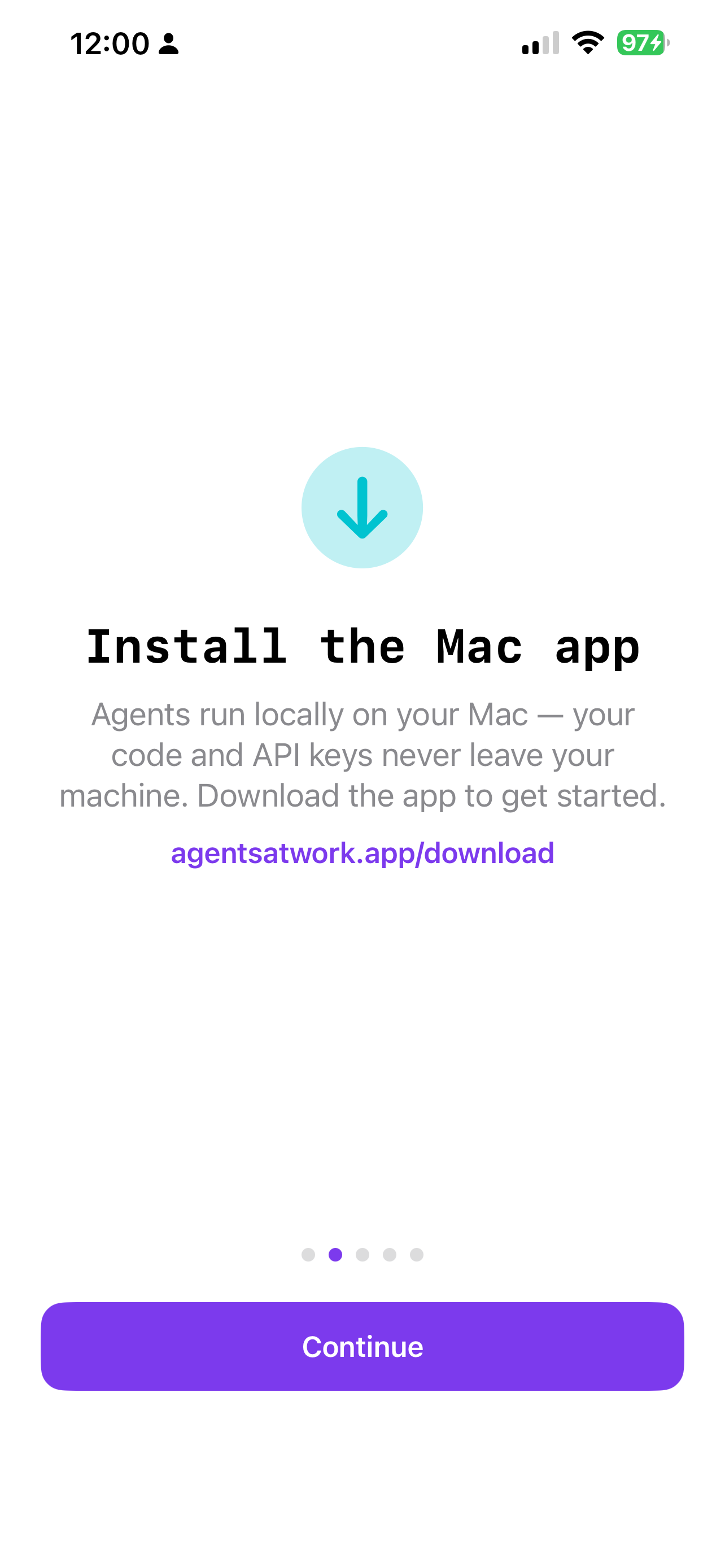
- Install the macOS companion app on the Mac where your agents run. Sign in, and your Mac is ready to bridge to your phone.
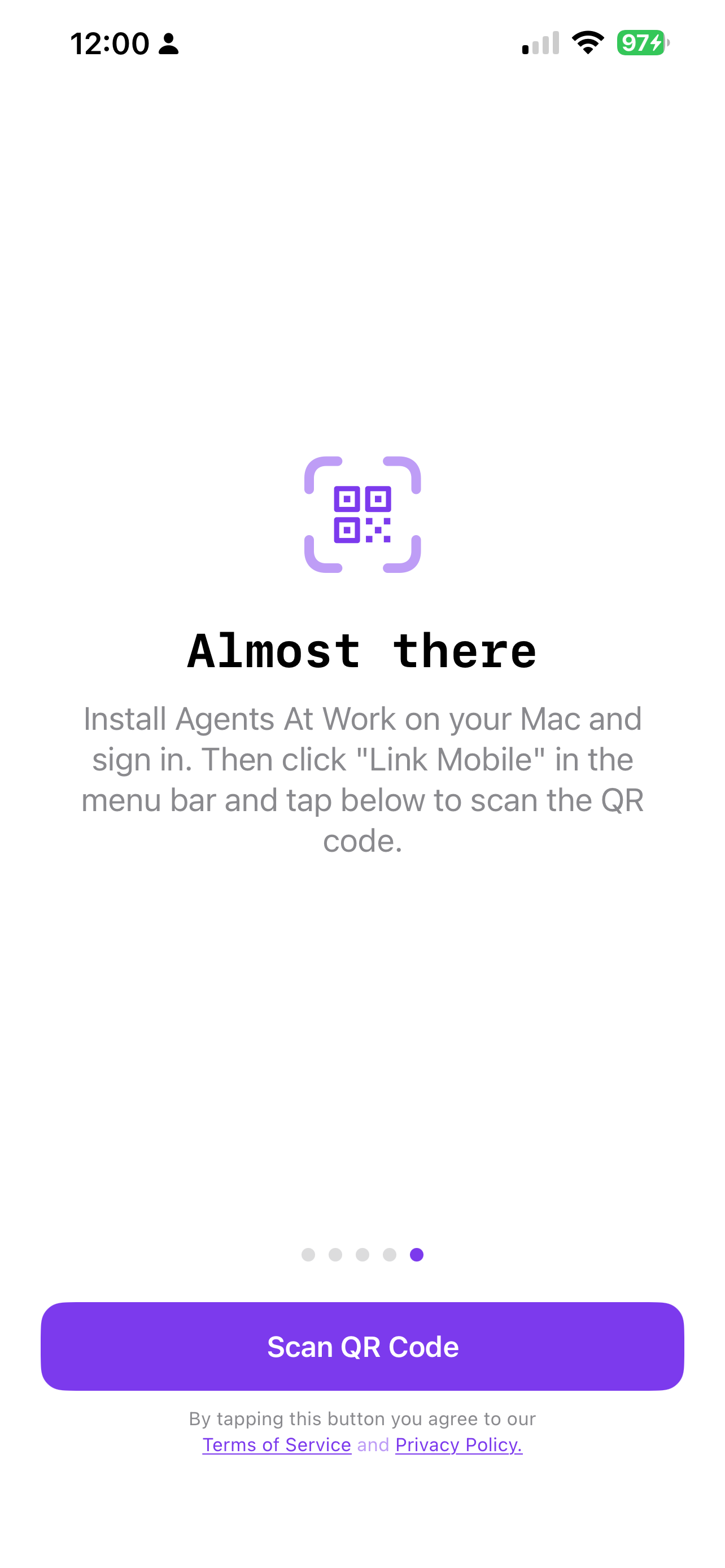
- Download the mobile app on iPhone (App Store) or Android (Google Play). No sign-in needed on the phone. Open it, go through the quick onboarding, and tap Scan QR Code. Point your camera at the QR shown in the Mac companion app, done. Your phone is linked, and the communication channel is end-to-end encrypted, in one step.
- Leave Claude, Codex, Gemini, or Grok running. You'll get a notification the moment the agent needs a decision. Tap Yes or No right from the notification, or from your Apple Watch.
Control everything from your pocket
Four agents running in parallel. One tap to approve. Zero desk required.
Everything you need to step away
Push notifications with action buttons
When the agent asks to edit a file, run a command, or make a decision, you get an instant notification with Yes / No buttons. Answer directly from the lock screen, no need to unlock or open the app.
Live conversation feed
Every message, tool call, and assistant response streams to your phone in real time. A status bar shows "Wrote main.py", "Ran: npm test" between turns so you always know what's happening.
Claude Code, Codex, Gemini CLI + Grok
All four agents are fully supported. Each session shows a color-coded badge: purple for Claude, teal for Codex, blue for Gemini, black for Grok, so you always know what's active and which agent is working.
Auto-approve mode
Toggle "Allow all for this session" when you trust the agent to proceed without interruption. Resets automatically when you send a message or the session ends.
Send a message mid-session
Use the BTW field to nudge the running agent: corrections, new instructions, or extra context, without stopping its flow.
Multiple Macs and projects
Add as many computers as you like. Each shows detected agents, live sessions, and usage stats. Tap any project to open its conversation.
End-to-end encrypted
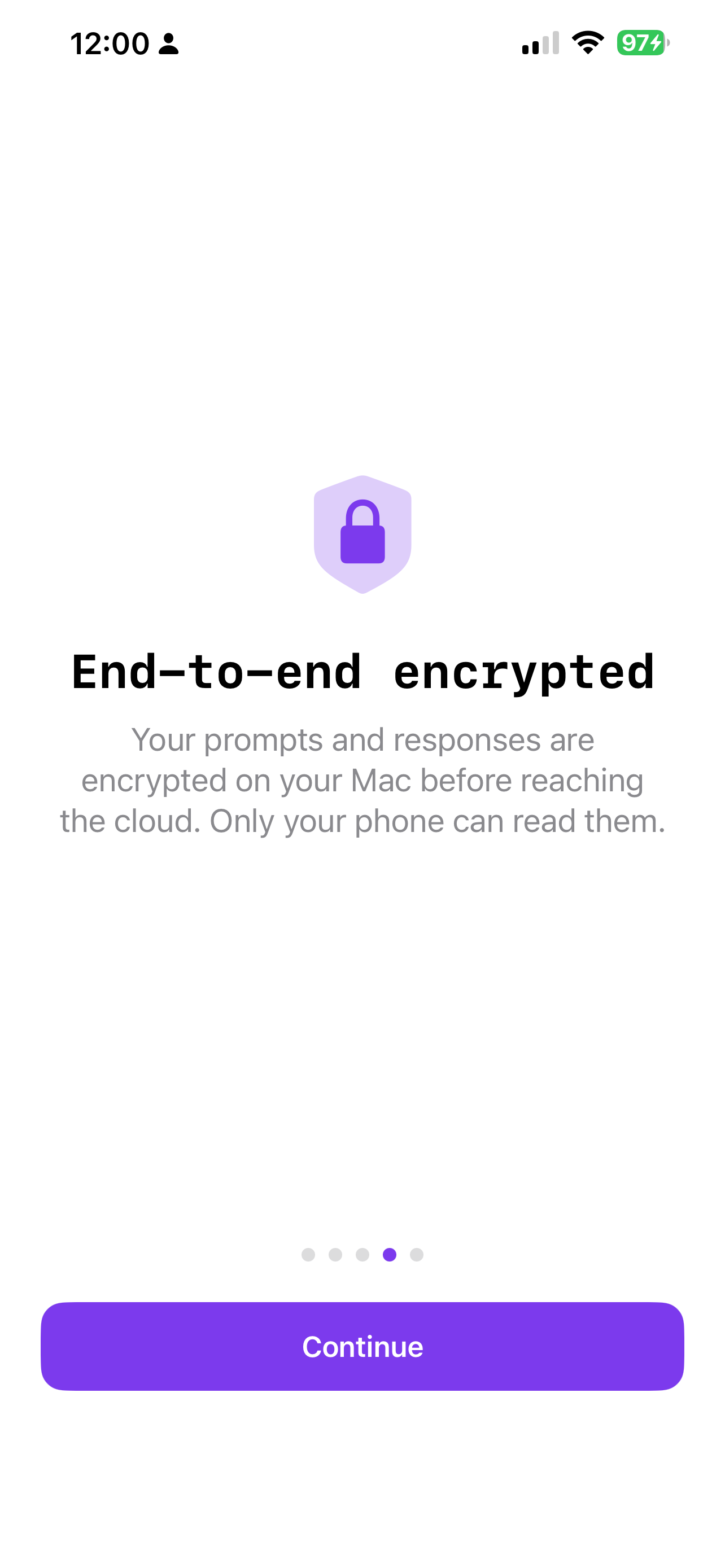
Conversation content is AES-256 encrypted on your Mac before it reaches Firebase. The encryption key is exchanged via a one-time QR scan, only your Mac and phone can read it. Firebase never sees plaintext.
Works on Apple Watch & Wear OS
Because the app uses standard iOS and Android notifications, permission prompts arrive on your watch automatically, no extra setup. Tap Yes or No on your wrist and the agent continues without you reaching for your phone.
Up and running in under a minute
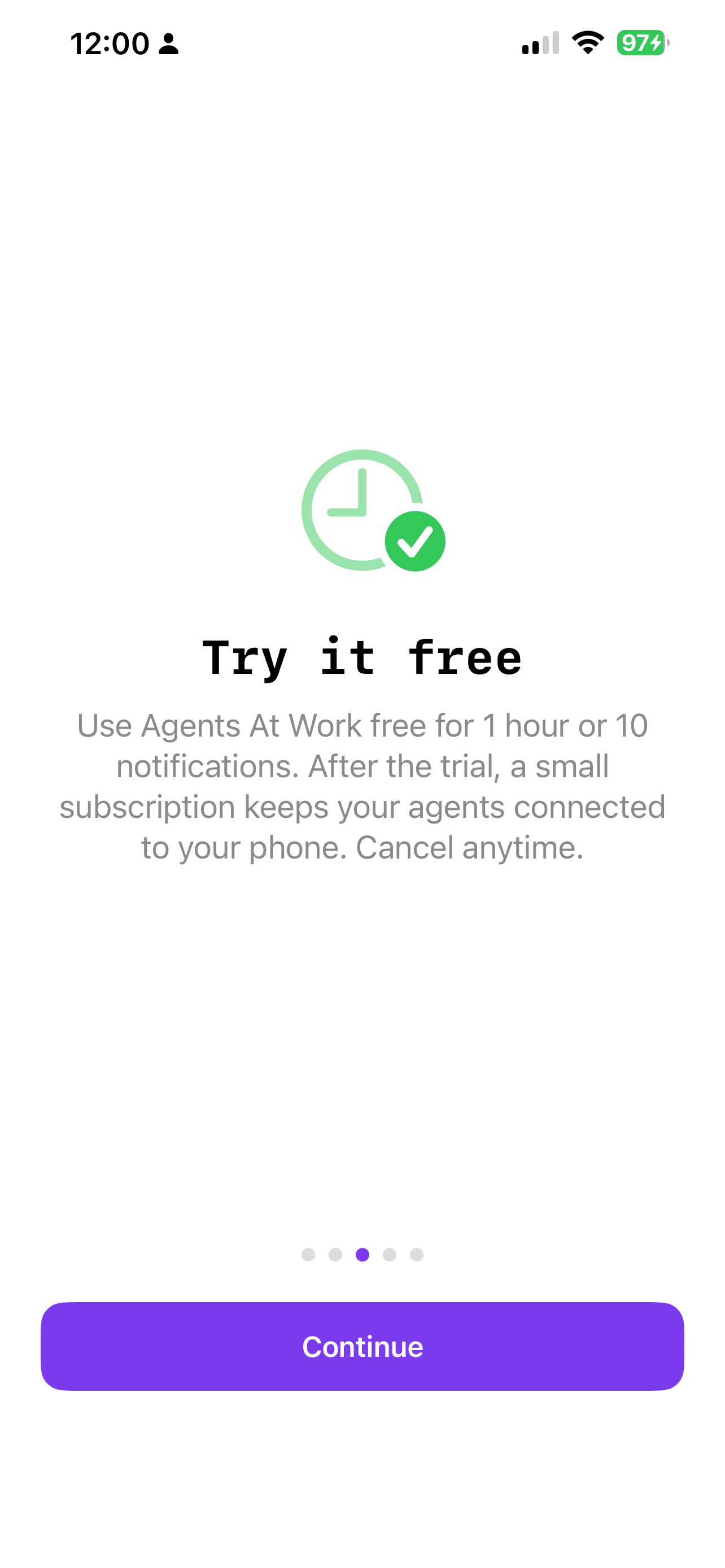
Five quick screens. Tap the phone to walk through them. Want the full walkthrough? See the tutorial →
What you need
Mac
- macOS 13 Ventura or later
- Claude Code, Codex, Gemini CLI, or Grok installed
- Agents At Work companion app, download →
iPhone
- iOS 16 or later
- Available on the App Store
- Links to your Mac via QR scan, no account needed on phone
Android
- Android 8.0 (API 26) or later
- Available on Google Play
- Links to your Mac via QR scan, no account needed on phone
Have a proposal, or need to deploy this to a bigger team?
Happy to work with you directly on rollout, custom integrations, or whatever you have in mind. Let's figure it out together.
Get the macOS companion app
Free. Notarized by Apple. Direct download, no Mac App Store required.
Download AgentsAtWork.dmg- Open the downloaded
.dmgfile. - Drag Agents At Work to your Applications folder.
- On first launch, macOS may show a Gatekeeper dialog, click Open. The app is notarized by Apple.
- Sign in with Google or email/password and follow the in-app walkthrough.
Need to install an agent CLI (Claude Code, Codex, Gemini, Grok) or tmux? Full setup walkthrough in the tutorial →